Install Ungodly GFX
Two files, one folder each, and you are done. The hard part was section 03. What this section really covers is how to confirm the plugin is not just loaded but actually reaching the subsystems it is meant to be driving.
01 Extract and copy
RAR Mirror Get it from StixsworldHD’s Google Drive
Extract it into your staging folder. Inside:
-
UngodlyGFX_v1.1.0\
wrapper — do not copy this folder itself
-
BepInEx\
- plugins\UngodlyGFX.dll 262 KB — the plugin
- config\com.stixsworldhd.ungodlygfx.cfg 70 KB — pre-written, every setting documented
- README.md the full 210-setting reference
- INSTALL.txt the short version of this page
- source\ complete buildable C# source — not installed
-
BepInEx\
Copy the BepInEx folder from the archive over the BepInEx folder in your
game directory. Windows will ask whether to merge — say yes. It is merging two
folders that both contain plugins and config, and nothing gets replaced
because neither of these two filenames exists in your install yet.
You should end up with exactly this:
<game folder>\BepInEx\plugins\UngodlyGFX.dll
<game folder>\BepInEx\config\com.stixsworldhd.ungodlygfx.cfg02 Confirm the files landed
 View at 1920×1080
UngodlyGFX.dll sits loose in plugins; OG Sound Remaster gets its own OGSoundRemaster folder because its 526-file audio bank has to travel with the DLL.
UngodlyGFX.dll sits loose in plugins. That is correct — it has no
companion assets, so it needs no folder of its own. Plate 04 also shows the
OGSoundRemaster folder from the next section, which does.
 View at 1920×1080
BepInEx.cfg is the loader's own, written on first run. com.stixsworldhd.ungodlygfx.cfg is the graphics plugin. OG Sound Remaster deliberately never creates one.
Two files in config and only two. BepInEx.cfg is the loader's own, written
during section 03. com.stixsworldhd.ungodlygfx.cfg is the one you just copied in.
03 Launch and find it in the log
Start the game. With the console enabled from section 03, you are looking for the plugin count to have gone up and a banner from the plugin itself:
[Message:   BepInEx] Chainloader ready
[Info   :   BepInEx] 1 plugin to load
[Info   :   BepInEx] Loading [Ungodly GFX 1.1.0]
[Message:Ungodly GFX] Ungodly GFX v1.1.0 - StixsworldHD (StixsmasterHD4k)04 Open the window
Press F7. The settings window opens over whatever is on screen — main menu or mid-mission, both work.
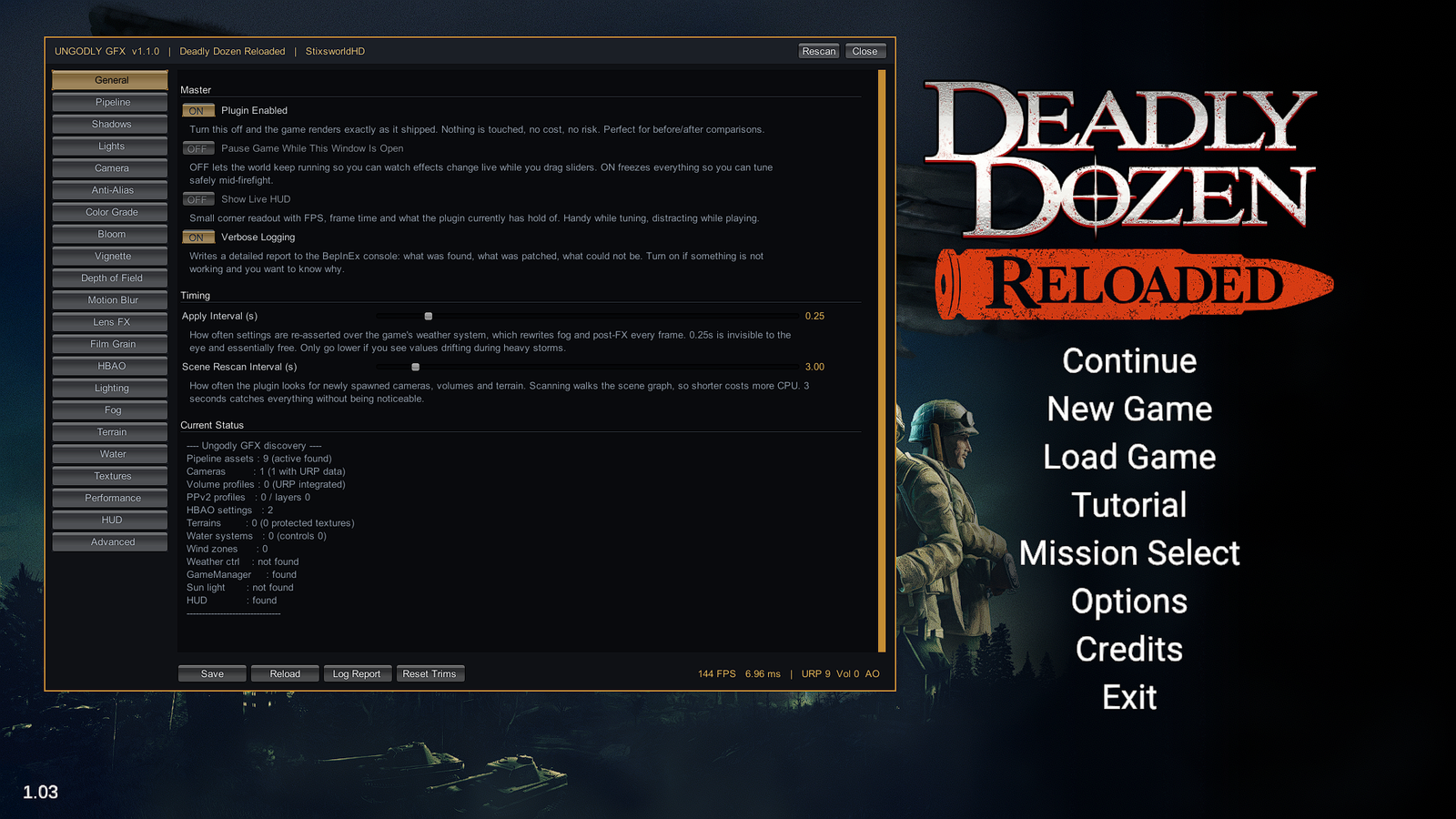 View at 1920×1080
The key you press is configurable. MenuKey in
com.stixsworldhd.ungodlygfx.cfg takes any Unity KeyCode name;
F7 is the default because nothing in Deadly Dozen is bound to it.
Reading the discovery report
The Current Status block at the bottom of the General tab is the single most useful diagnostic in the plugin. It is a live count of what the plugin has actually found and has hold of. Plate 06 was taken on the main menu, which is why most of the world-related counts read zero — there is no world loaded yet.
| Line | Healthy value | What it means |
|---|---|---|
| Pipeline assets | Should be more than 0 | The game hot-swaps between four URP pipeline assets as you change in-game Shadow Quality. The plugin finds and patches all of them. |
| Cameras | At least 1, with URP data | The with URP data part matters — that is the additional camera data component the post-processing settings live on. |
| Volume profiles | Often 0 here | The weather controller holds a volume profile privately that is never attached to a scene component. Turn on AggressiveVolumeSearch to sweep for it. |
| PPv2 profiles | Usually 0 | The game ships both PostProcessing v2 and URP's integrated Volume system, and uses the latter. 0 here is normal, not a fault. |
| HBAO settings | Should be more than 0 | The ambient occlusion asset. The game gives you a checkbox for this; the plugin gives you the whole thing. |
| Terrains / Water / Wind / Weather / Sun | All 0 on the main menu | These exist only inside a loaded mission. Zero here means nothing. Start a mission and press Rescan. |
| GameManager / HUD | found | The game's own manager object and the interface canvas. |
Bottom right of the window is a live readout: frame rate, frame time, and a compressed summary of
what the plugin holds. In Plate 06 that reads 144 FPS · 6.96 ms · URP 9 · Vol 0 · AO
— nine pipeline assets, no volume profiles found yet on the menu, ambient occlusion reached.
05 Confirm it is doing something
Loading is not the same as working. The fastest end-to-end proof takes fifteen seconds:
- Start any mission and let it load fully.
- Press F7, then Rescan. Terrain, water and weather counts should now be non-zero.
- Go to the Fog tab and pull the fog density trim down to about
0.35. - Close the window. The view distance should visibly open up.
- Reopen and press Reset Trims to put it back.
PauseGameInMenu is off by default on purpose, so the world keeps running behind the
window and you can watch changes land live as you drag a slider. Turn it on in the General tab if
you would rather not get shot while tuning.
Before moving on
0 of 6 confirmed